
IT strategy
Planning next year’s IT budget: a practical guide for Cayman businesses
Most IT overspending starts with a surprise: a server that fails, a renewal nobody remembered, or a new security requirement from a client or insurer. A simple budget built from what you own and when it needs replacing takes most of those surprises away.
By the CNS team · · 4 min read

Key takeaways
- Start from a list of your hardware, software and contracts, with renewal dates.
- Split the budget into running costs, replacements, projects and a contingency.
- Allow for this year’s price rises, including the Microsoft 365 changes from 1 July 2026.
- Review the budget every quarter so it stays useful.
Start with what you have
Before you put a number on anything, write down:
- Every laptop, desktop, server, firewall, switch and Wi-Fi access point, with its purchase date and warranty expiry.
- Every software subscription, how many licences you pay for and when each one renews.
- Your contracts for IT support, internet, phones, cloud hosting and backup.
- Domain names, security certificates and anything else that expires each year.
If you have a managed IT provider, ask them for this. Most of it should already be in their monitoring and documentation.
Running costs
These are the costs you pay every month or year to keep things working: Microsoft 365 and other subscriptions, security tools, backup, your support contract, internet and phones.
Microsoft raised several Microsoft 365 business prices on 1 July 2026. Business Basic went from US$6 to US$7 per user per month and Business Standard from US$12.50 to US$14, while Business Premium stayed at US$22. Most businesses see the new price at their first renewal after that date, so check when yours falls.
The gap between Business Standard and Business Premium is now US$8 per user. Premium adds Intune device management, Defender for Business and conditional access, so if you pay for separate tools that do the same jobs, it may be worth comparing. A licence review often finds accounts for staff who have left and tools that overlap.
A replacement schedule
Replacing a few devices every year costs less, and causes less disruption, than replacing everything at once when it all starts failing. As a starting point, we suggest planning for:
- Laptops and desktops every four years, or sooner for staff who travel a lot.
- Firewalls, switches and Wi-Fi every five to seven years, or when the manufacturer stops issuing security updates.
- Servers every five years, or a move to the cloud when one is due.
Allow for prices going up. Gartner said in February 2026 that rising memory prices were pushing up the average selling price of PCs and phones. In Cayman, add freight and import costs, and order before hurricane season when you can, because shipping can be delayed once storms arrive.
Projects and improvements
List the changes you want to make next year and give each one a rough cost: a move to new offices, a Microsoft 365 or cloud migration, a Copilot pilot, a new phone system, or the fixes from your last security assessment. Rank them by risk and benefit, so if money gets tight you know what can wait.
Security and compliance
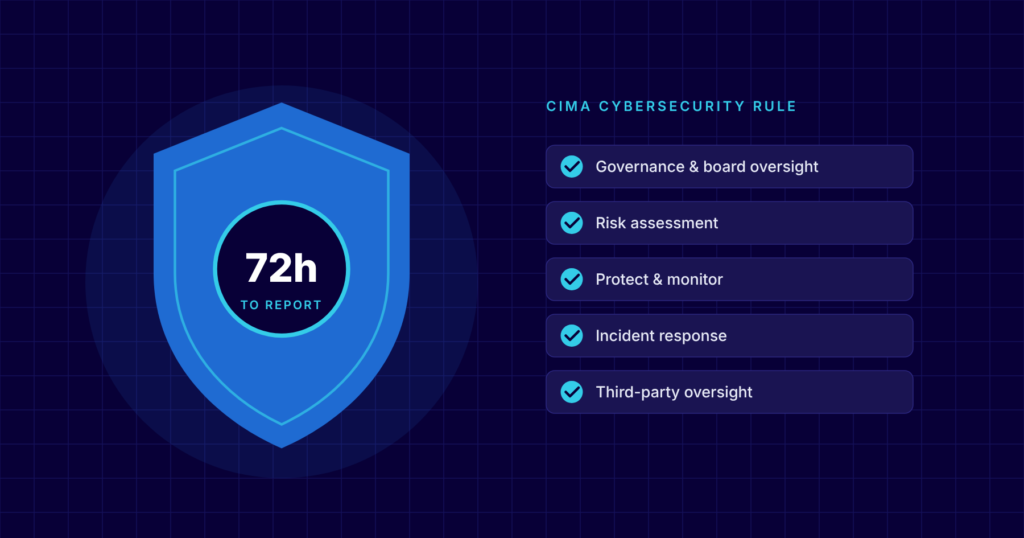
Cyber insurers expect multi-factor authentication, endpoint protection and tested backups. CIMA-regulated businesses need regular assessments and testing to meet the Rule on Cybersecurity. Budget for an annual penetration test or security assessment, staff security training and the time needed to keep policies up to date.
A contingency, reviewed every quarter
Hold back part of the budget for hardware that fails early, new starters and urgent requests. Then look at the budget every quarter: what you’ve spent, what’s changed in the business and which projects should move up or down.
How CNS can help
Building the annual IT budget and replacement schedule is part of our virtual CIO service, and we also do it as a one-off IT consulting project. We start from the inventory in our monitoring tools, review your licences and contracts, and give you a budget you can take to your board or partners, with the reasoning behind each line.
More insights
Questions about your own setup?
Talk to a Cayman IT expert. No obligation, no jargon.