
Cloud
Moving to the cloud when you’re stuck with QuickBooks Desktop
Email and files are in the cloud, yet the office still keeps a server running for one program. Here are your options for QuickBooks Desktop, and what to check before you move it.
By the CNS team · · 5 min read
Key takeaways
- QuickBooks Online and Xero are different products, and many finance teams prefer to keep Desktop.
- Hosting Desktop in a data centre lets you retire your last server, keep the software you know and work fully remote.
- The hosted server should have no public access: users connect through a VPN or ZTNA.
- Check your QuickBooks version, licence and add-ons before you move.
Why QuickBooks Desktop keeps the server
Many Cayman businesses have moved email to Microsoft 365, files to SharePoint and phones to Teams. One program often holds them back. QuickBooks Desktop keeps its company file on a shared drive, so the office needs a server that every user can reach.
Switching to QuickBooks Online or Xero would solve that, but both are different products. Reports, add-ons, inventory and job costing work differently, and a finance team with years of history in Desktop often has good reasons to stay.
Desktop is still sold and supported, with some changes. Intuit stopped selling Pro Plus and Premier Plus to new subscribers in September 2024. Existing subscribers can still renew, and Enterprise is still available to new customers.
Your three options
- Keep the office server. It works, but you’re still paying for hardware, power, backups and maintenance, and remote access from home has to be secured. A storm or a power cut can take it offline.
- Move to QuickBooks Online or Xero. The right choice for some businesses. Plan time for converting years of records, rebuilding reports and retraining staff, and confirm that your add-ons have an online version.
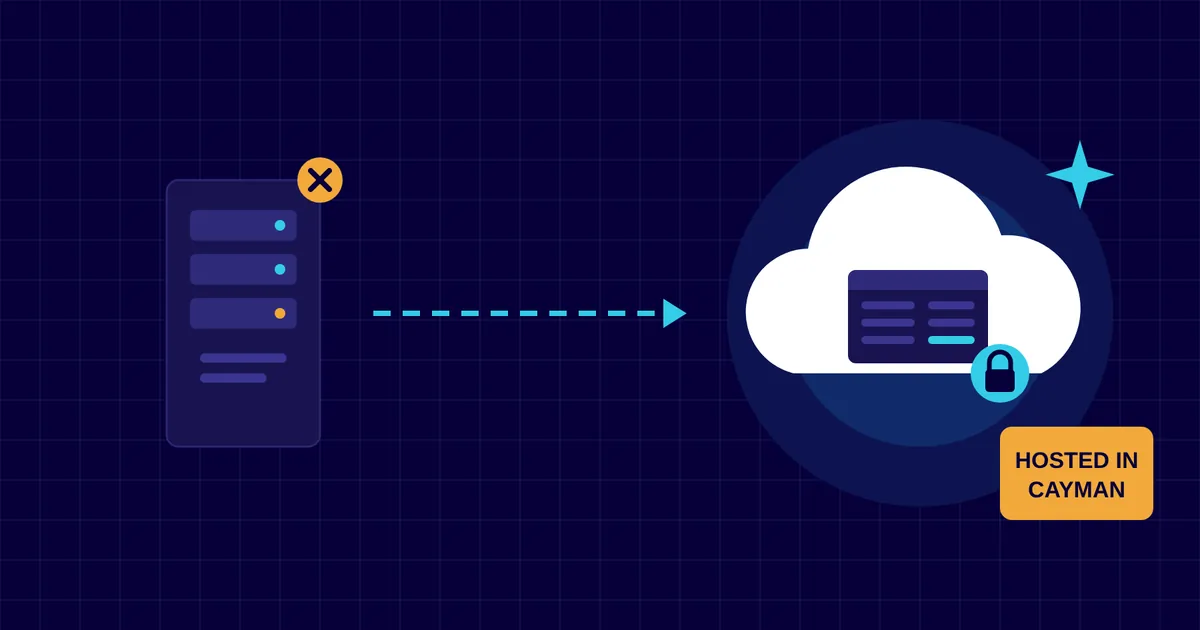
- Host QuickBooks Desktop in a data centre. The software and your company files move to a server run by your IT provider. Your team keeps the program, company files and history they know, the office server can go, and everyone can work fully remote.
What hosting involves
Your provider sets up a Windows server in a data centre and installs QuickBooks and any add-ons you use. Your company files are copied across and tested with your team before you switch over.
Staff then open QuickBooks through a remote desktop connection from the office, from home or while travelling. To them it looks like QuickBooks on their own computer, and printing and exports work as before. The provider looks after the server, its updates and its backups.
Keep it off the public internet
A Remote Desktop server that anyone on the internet can reach is a favourite target for ransomware gangs. Ask how the hosted server is protected. The safest set-ups allow no public access at all: each person connects through a VPN or zero trust network access (ZTNA), signs in with multi-factor authentication, and loses access the day they leave.
Check these before you move
- Your version. Intuit supports each Desktop release for about three years. Support for Desktop 2023 ended on 31 May 2026, so an older version may need upgrading first.
- Your licence. Intuit runs a hosting programme with a list of authorised hosting providers. Ask your provider how your licence will be used on their server, and check your licence terms.
- Add-ons and integrations. List everything that connects to QuickBooks, such as payroll, payments, bank feeds and reporting tools, and confirm each one works when hosted.
- Where your data lives. Under the Data Protection Act you should know where personal data is held. A Cayman data centre keeps your financial records on island.
How CNS can help
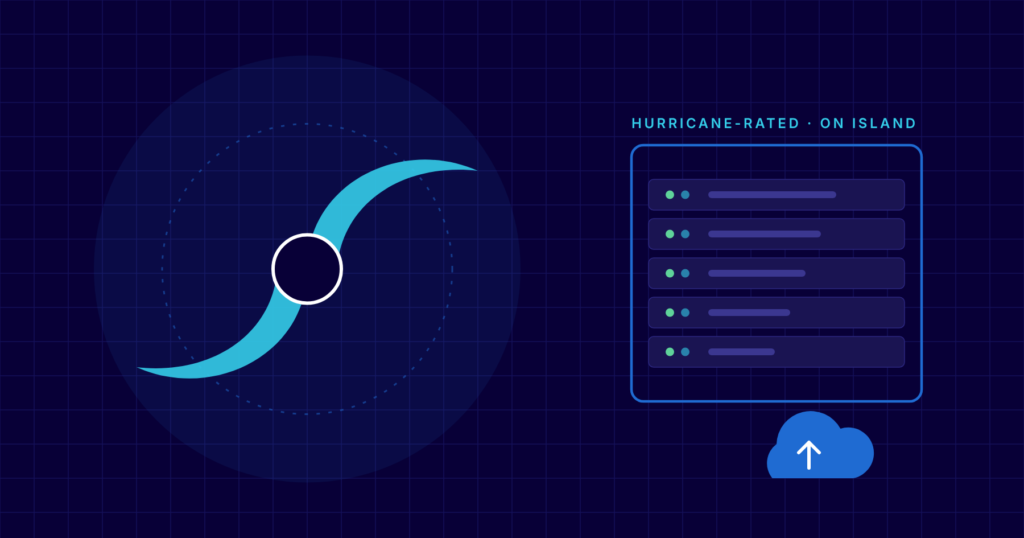
We host QuickBooks Desktop, or another Windows application your business depends on, in our hurricane-rated data centre in Cayman. The servers sit behind NetBird zero trust network access, with nothing open to the public internet, and we keep them patched, monitored and backed up. You supply the licence, or we’ll try to procure one for you.
More insights

Questions about your own setup?
Talk to a Cayman IT expert. No obligation, no jargon.